
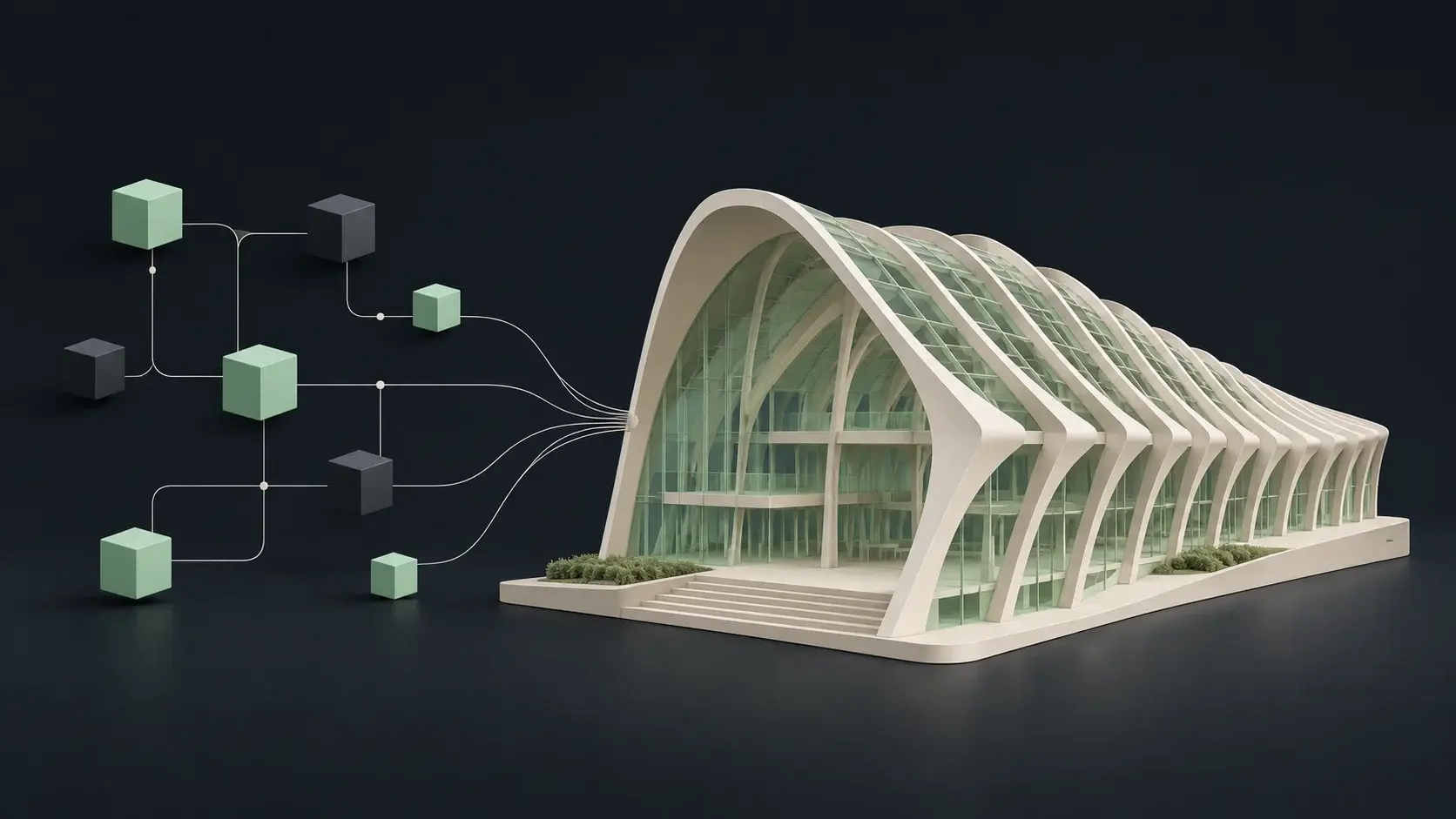
Revit AI automation through a tool connector or a workspace
Nonica’s AI Connector documentation describes prebuilt tools for model exploration, parameter editing, and documentation. Its current product page separates a Free connector focused on reading and analysis from Pro access with a broader toolset. Evaluate the edition you would actually buy instead of assuming the free and paid experiences expose the same actions.
Desktop’s public scope starts with the user’s task and project context, then carries work into supported applications. The practical distinction is who assembles the whole process. A connector can be a very good fit when the team already has a preferred AI client and a clear set of Revit operations; a broader workspace can help when the task needs more context and several connected steps.
Sources: Nonica product tiers and pricing · Nonica AI Connector documentation · ArchiLabs Desktop capabilities and recorded demonstrations
Include the external AI assistant in the Nonica comparison
A connector does not make the client irrelevant. The client controls how users supply files, retain context, and organize prompts. Two teams using the same Revit connector with different client configurations may have very different day-to-day experiences. Document the complete setup in the pilot report.
For a fair comparison, start with the same input quality. Do not give one tool a clean spreadsheet and the other a vague paragraph. If the selected client can read a document or use another connection, include that capability in the Nonica workflow rather than incorrectly attributing the client’s boundaries to the connector. Then count the effort required to maintain that arrangement.
A useful parameter-audit and documentation test
Choose one equipment category with a mixture of complete and incomplete records. First ask for a report of missing fields, then request an approved correction using a stable identifier. Finish by creating a review schedule or view that lets a BIM coordinator inspect the affected elements. This is a better test than an isolated element count.
Introduce a type parameter that affects several instances and a read-only field that should not be changed. Check whether the workflow distinguishes them before execution. If the selected Nonica tier does not expose a required write action, record the tier limitation clearly and test the appropriate paid edition before making a broad claim about the product.
Best BIM copilot fit depends on the team’s existing stack
Nonica can be attractive when the team already wants its ready-made utilities, has approved an external AI app, and prefers a bounded connector. Desktop can be attractive when users want a consistent place to explain work that crosses native applications and source systems. Both choices still require someone to define what counts as a correct result.
Verify the connector’s own compatibility list. A toolbar supporting an older Revit release does not automatically prove that every AI feature works there. Repeat the pilot on the oldest supported project version your firm needs, with the actual office deployment settings, before assuming a successful workstation test will transfer everywhere.
Sources: Nonica product tiers and pricing · Nonica AI Connector documentation
NonicaTab / Nonica AI Connector vs ArchiLabs: pricing and total workflow cost
ArchiLabs Desktop starts at $19/month plus usage credits. That gives teams an accessible starting point for AI work across Revit, AutoCAD, and connected project context. Size the usage allowance around the workflows you want to scale.
Free tier; Pro €85/user/year + VAT. Nonica’s current site distinguishes the read-only Free connector from the fuller Pro connector. An external AI-client plan is separate. Check connector-specific version support rather than assuming every toolbar version has the same MCP compatibility.
Nonica’s listed Pro price is modest relative to many production tools, but add the external AI-client plan and team support effort. Desktop adds usage credits to its starting subscription. Compare complete setups in their original currencies and billing terms, rather than silently converting an annual euro price into a monthly dollar claim.
Sources: ArchiLabs pricing · Nonica product tiers and pricing · Nonica AI Connector documentation
A practical BIM automation pilot for this comparison
Use a copy of a representative project and record the starting state. These are suggested acceptance checks, not results of a hands-on benchmark. Give both options the same inputs and count preparation, corrections, and review as part of the work.
- Test the correct Free or Pro toolset and record the client configuration.
- Audit missing equipment fields against a known schedule.
- Handle type parameters and read-only fields explicitly.
- Inspect the review schedule and the actual changed element set.
- Verify AI Connector compatibility on the firm’s required Revit releases.
Common questions
Does Nonica’s free AI Connector edit the model?
The current Nonica product page describes Free as read-only and Pro as the fuller connector. Check current tier documentation because older release descriptions may differ.
Does Nonica include the AI-client subscription?
Treat the external client as a separate product and verify its terms. A Revit connector license does not by itself establish the client’s usage allowance.
Can Nonica and Desktop coexist?
They may serve different workflows, but test the exact installed combination and avoid simultaneous edits to the same model scope. The comparison does not establish add-in compatibility.
Sources and comparison notes
Published by ArchiLabs using public product documentation reviewed on November 9, 2026. Recommendations reflect our product perspective. Workflow examples are suggested evaluations, not measured benchmark results. Prices retain the vendor’s currency and billing terms.